GOOGLE FLOW · AI VIDEO · 2026 GUIDE
Google Flow AI Video Generator: Free Credits, Tutorial & Best Settings
Google Flow can turn text, images and frames into short AI video clips. This guide explains what you can use without a paid AI plan, how credits work, which settings matter, how watermarking works, and a practical workflow for YouTube Shorts and Reels.
Quick answer: is Google Flow free in 2026?
Google currently documents limited Flow access for people without a Google AI subscription. Its credit help page says non-subscribers receive 50 Google Flow credits per day, while the current model-support page lists text-to-video and frames-to-video for users without a Google AI subscription. However, another general “Get started” help page still describes subscription requirements, so availability can depend on account, region and rollout. Check your Flow account before planning a large project.
For a free workflow, use low-cost short generations first, keep your best clips, then assemble them in a normal editor. That gives you more control than trying to generate an entire video in one prompt.
What is Google Flow?
Google Flow is Google's AI filmmaking workspace for generating and editing visual scenes. According to Google's current help documentation, Flow can create video from text prompts, animate images, generate from first or first-and-last frames, use reference ingredients, and build sequences from multiple generated clips.
Flow is useful when your goal is not simply “make one AI video,” but to create a sequence of controlled shots. You can generate a close-up, a wide shot and a transition separately, then combine the strongest outputs in your editor.
The important idea is that Flow should be treated as a shot generator, not a magic one-click replacement for scripting and editing. Your final quality still depends heavily on scene planning, prompt clarity, reference consistency and how you cut the clips together.
Google Flow free credits: how the current system works
Google's Flow credit help page currently says that accounts receive 50 Google Flow credits per day, including non-subscribers. Paid Google AI plans add monthly credits on top of that allowance. Credits are used per generation, and different models or clip lengths can consume different amounts.
The same help page also warns that free video generation may be unavailable during peak usage periods. Unused daily Flow credits do not roll over. Your refresh timing is tied to when you first use the daily allocation.
| Item | Current official guidance | Why it matters |
|---|---|---|
| Daily Flow credits | 50 per day for non-subscribers | Enough for testing several lower-cost generations, not unlimited video production |
| Peak-hour access | Free video generation can be restricted during heavy demand | Do not rely on free generation for a deadline-critical production workflow |
| Credit rollover | Unused daily Flow credits do not roll over | Small daily experiments are more efficient than saving credits for later |
| Paid plans | Plus, Pro and Ultra add monthly Flow/AI credits | Useful when you need many variations, upscaling or more advanced features |
Checked: November 8, 2026. Credit pricing and model costs can change, so always check Flow's model/settings panel before generating.
Which Google Flow features work without a paid AI subscription?
Google's current model-support documentation explicitly lists several capabilities under “Without a Google AI subscription.” At the time of this update, it includes text-to-video and frames-to-video, with both supported aspect ratios and short clip lengths in the 3–10 second range for the current Omni Flash generation path.
This is the most useful free entry point. You can make a vertical social shot, a horizontal YouTube B-roll shot, or animate a prepared image. Advanced features such as certain upscale, extend or premium model options may still require a paid plan.
| Feature | Free/no-subscription status | Practical use |
|---|---|---|
| Text to video | Documented for users without a Google AI subscription | Create a clip directly from a written scene description |
| Frames to video | Documented for users without a Google AI subscription | Animate a prepared first frame or create more consistent composition |
| 3–10 second clips | Supported range depends on current model/settings | Ideal for Shorts, Reels and B-roll |
| 1080p upscaling | Google's credit help page currently lists this as unavailable to non-subscribers | Free users should plan around native/downloadable resolution |
| 4K upscaling | Limited to specific higher paid tiers | Not necessary for most social-first workflows |
How to use Google Flow: step-by-step
Step 1: start with one shot, not a whole movie
Open Flow and create a project. Before you type anything, decide exactly what the next 4–10 seconds should show. A good first scene has one subject, one main action and one camera idea.
Weak idea: “Make a futuristic city video with flying cars, robots, rain, shops, crowds, an explosion and a camera flying through everything.”
Better idea: “Wide aerial shot of a clean futuristic city at sunrise, autonomous vehicles moving through elevated roads, slow forward camera movement.”
Step 2: write a visual prompt
Flow works best when your prompt describes what the camera should see. Use this formula:
Subject + action + environment + composition + camera movement + lighting + style.
Example:
A small delivery robot moves through a modern warehouse aisle, workers visible safely in the background, medium tracking shot, slow forward camera movement, realistic industrial lighting, documentary visual style, no text.
Step 3: choose video mode and settings
In the standard Flow prompt box, choose the video option, then select the aspect ratio, number of outputs, model and generation length available to your account. For a YouTube Short or Reel, use vertical framing. For normal YouTube, use horizontal framing.
When testing, generate the shortest useful version first. A 4-second draft can tell you whether the composition, subject and camera motion are correct before you spend more credits on a longer clip.
Step 4: use frames when consistency matters
If text-to-video keeps changing the face, product, vehicle or scene layout, create the first frame deliberately and use frames-to-video. Google's current help documentation supports using first frames and, in compatible models, first-and-last frames.
This gives you a more controlled starting composition and is often better for recurring characters, products, machines and branded scenes.
Step 5: generate variations, then keep only the strongest clip
Do not use every output. Compare body movement, hands, background stability, object shape and camera motion. Keep the most coherent version and regenerate only when the scene fails an important visual requirement.
Step 6: edit outside Flow
For a complete social video, export your strongest clips and assemble them in an editor. Add narration, captions, music and your final call-to-action there. A 30-second video might use six 5-second shots instead of one long generated scene.
Best Google Flow prompt formula for cleaner results
A useful prompt should be descriptive but not overloaded. Flow's own guidance recommends being specific about subject, action, environment, lighting and style. You can add camera direction when motion matters.
Engineer wearing a yellow safety helmet stands beside an automated production line, robotic arm moving slowly in the background, medium shot, subtle dolly-in camera, realistic factory lighting, natural colors, documentary realism, no text.
Young creator holds a smartphone while an AI-generated video plays on the screen, clean modern desk, soft daylight, vertical 9:16 composition, close-up then slight pull-back, realistic social-content style.
Keep the subject's identity, clothing and background unchanged. Add only a slow head turn and gentle camera push-in. Preserve facial proportions and lighting. No new objects.
The third example shows an important trick: when animating an image, tell the model what must not change. Constraint language can be as useful as descriptive language.
How to make a YouTube Short with Google Flow
A practical free-first workflow is:
- Hook: generate one visually surprising 3–5 second vertical shot.
- Setup: create one shot that explains what the viewer is seeing.
- Value: create two or three shots that support your narration.
- Payoff: save your strongest visual for the final third.
- CTA: use a simple closing shot and add the text later in the editor rather than asking the video model to render typography.
AI video models are still unreliable at exact on-screen text. Generate clean visual footage and add titles/captions in your editor. This also keeps the typography consistent across all scenes.
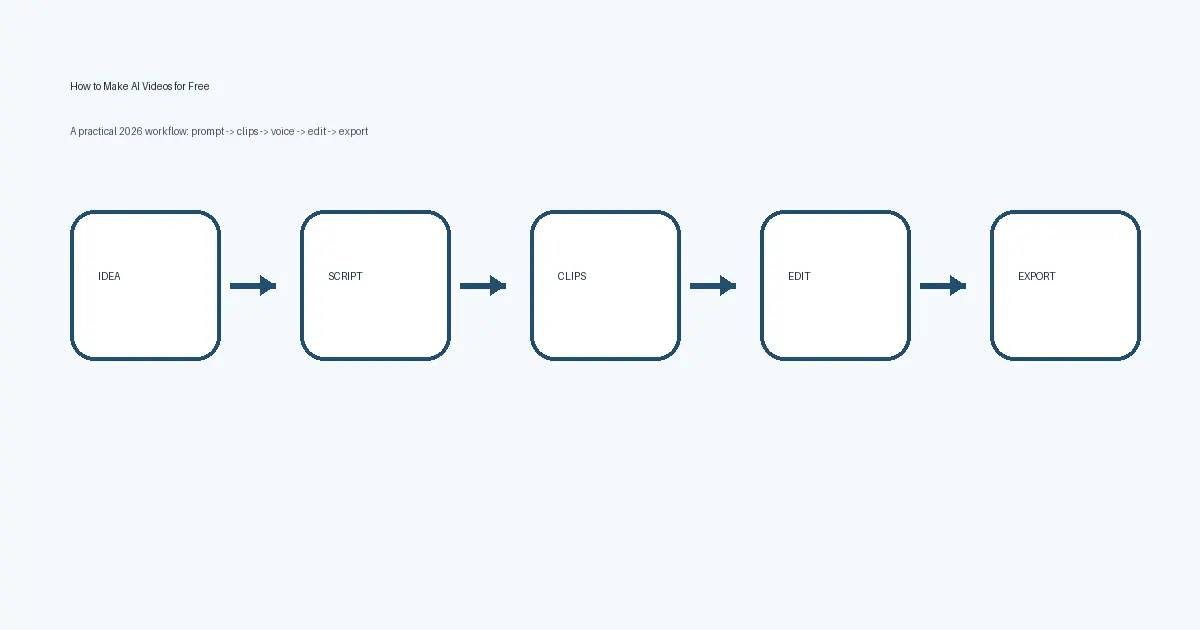
If you want the broader end-to-end workflow, read How to Make AI Videos for Free, which covers scripting, voice, editing and export beyond Flow itself.
Google Flow watermark: what you should know
Google says Flow outputs generated with its supported generative models include invisible SynthID, Google's provenance watermark for AI-generated content. Google also documents a visible watermark option.
The important regional detail is that Google's current help page says a visible watermark is automatically applied for users in India, South Korea and Vietnam unless they are on the specified Google One AI Ultra 20x plan. That means a creator in India should not assume a free Flow clip will be visually watermark-free.
Do not build your workflow around removing provenance marks. Instead, treat watermarking and AI disclosure as part of the platform's content policy and your publishing workflow.
Why Flow clips sometimes look inconsistent
Face changes
Use a stable reference frame, repeat the same visual descriptors, reduce camera changes and avoid switching style words between shots.
Hands distort
Make hand actions simpler. Use wider framing when fingers are not important, or cut away to an object/detail shot.
Background flickers
Reduce the number of independently moving subjects and ask for slower camera motion.
Product changes shape
Use frames-to-video or a reference ingredient when available. Keep the product angle and composition stable.
Prompt ignored
Remove secondary actions. Put the most important subject and action at the beginning of the prompt.
Credits disappear quickly
Draft short clips first, test composition, and spend more credits only after the shot direction works.
Google Flow vs a normal AI video generator
The main advantage of Flow is not simply that it can create a clip from text. Many tools can do that. Flow is more interesting when you use it as a scene-building environment: prompts, frames, references, multiple variations and clip editing can be part of one project.
That makes it better suited to creators who want continuity across multiple shots. If all you need is one fast visual for a social post, a simpler generator may be enough. If you are planning a 30–60 second sequence, Flow's project-based workflow becomes more useful.
Is Google Flow good for commercial videos?
Do not assume that “generated successfully” automatically means “safe for every commercial use.” Before publishing client or advertising work, review Google's current service terms, your rights to any uploaded images or reference media, and the policies of the platform where the final video will appear.
Avoid uploading copyrighted characters, private customer footage or someone's face unless you have the rights and permissions required for that use.
Important limitation: Google's help pages currently show mixed availability wording
Google's current Flow documentation is not perfectly consistent. The Flow credit page clearly documents non-subscriber daily credits, and the model-support page explicitly lists features “Without a Google AI subscription.” At the same time, the general “Get started with Google Flow” page still includes subscription language in its eligibility section.
The safest interpretation is: free/no-subscription access is currently documented for specific capabilities, but actual availability can vary by region, account and rollout. If your account asks for a subscription, follow what the product UI shows rather than assuming the help-page allowance is active for every account.
This kind of rollout mismatch is exactly why this article links to primary Google documentation instead of presenting a fixed “unlimited free” claim.
FAQ
Is Google Flow completely free?
No. Google currently documents a limited daily Flow credit allowance for non-subscribers. Paid plans add more credits and unlock or expand some capabilities.
How many free Google Flow credits do you get?
Google's Flow credit help page currently states 50 Google Flow credits per day for non-subscribers. Limits can change.
Can Google Flow make vertical videos?
Yes. Google's current model-support documentation says text-to-video supports both aspect ratios for users without a paid AI subscription, subject to the active model and account availability.
Can I use an image to make a video in Flow?
Yes. Flow supports frames-to-video and other reference-based workflows, although specific options depend on model and account access.
Does Google Flow add a watermark?
Google says generated outputs include invisible SynthID. A visible watermark can also apply, and Google's current help page specifies automatic visible watermarking for certain regions including India unless the account is on the specified high-tier plan.
Can I create a full 5-minute video directly in Flow?
Flow is better used for short generated shots. Build a longer video from multiple clips, narration, captions and editing rather than expecting one prompt to generate a coherent five-minute sequence.
Official sources checked for this guide
- Google Flow Help — manage Flow credits
- Google Flow Help — create videos in Flow
- Google Flow Help — models and supported features
- Google Flow Help — get started and watermark guidance
- Google — Flow creative control updates
Sources checked November 8, 2026. Google may change models, credits and plan access after publication.
Bottom line
Google Flow is most useful when you stop thinking of AI video as one giant prompt. Write a scene, generate a short shot, keep the strongest output, use frames when consistency matters, and assemble the final story in an editor.
If your account has the currently documented non-subscriber access, the 50 daily Flow credits are best used for testing ideas and learning the workflow—not for unlimited production. Start with short drafts, control your references and spend credits only after the shot direction works.
Next, use our complete free AI video workflow for scripting and editing, or browse more practical guides in the Xenors AI hub.