AI VIDEO WORKFLOW · UPDATED 2026
How to Make AI Videos for Free in 2026
A practical workflow for turning an idea into short AI-generated clips, narration, captions and a finished YouTube or Instagram video—without pretending every “free” tool is unlimited.
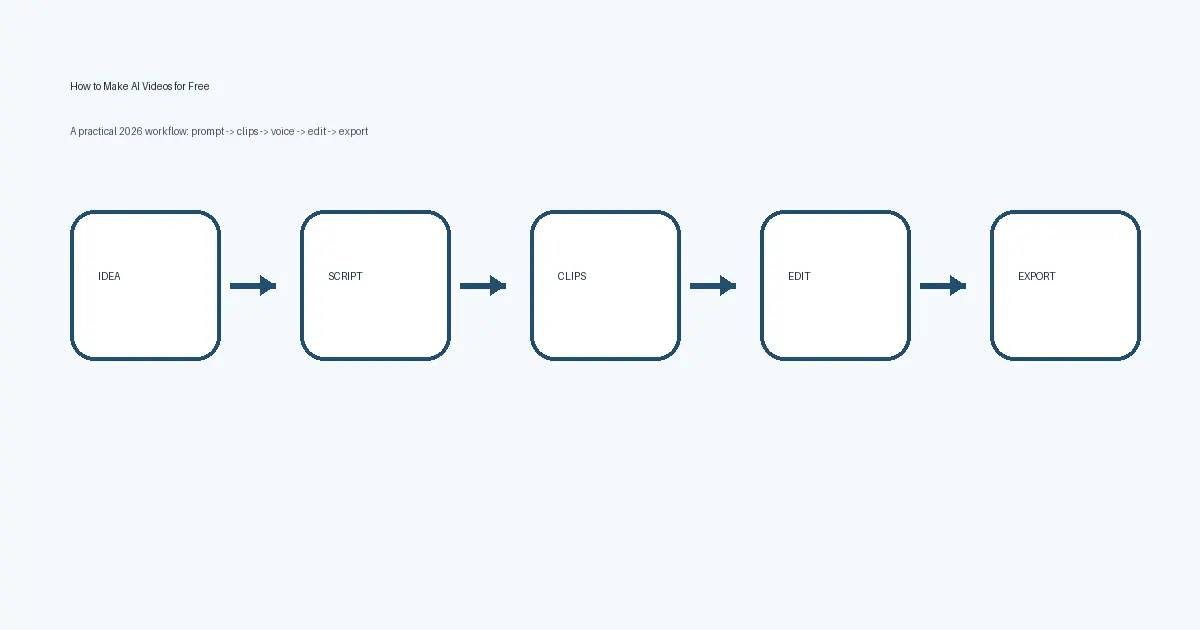
Quick answer: the simplest free AI video stack
For a beginner, a practical stack is ChatGPT for the script and prompts, Google Flow or Adobe Firefly for short generated clips, and Microsoft Clipchamp for editing and export. Google Flow currently gives non-subscribers 50 Flow credits per day; Firefly has limited free daily generations; Clipchamp's free personal plan exports up to 1080p without adding a watermark when you stay within free features. These limits can change, so check the official plan pages before a large project.
What “free AI video” really means in 2026
Free rarely means unlimited. Most AI video services use one of three models: a small daily allowance, a one-time pool of credits, or limited access to selected models. The output can also differ by resolution, clip length, queue priority, watermark policy and commercial-use rights. That is why this guide treats the generator and editor as separate parts of the workflow.
If your goal is a 30-second Reel or Short, you do not need one model to create the entire video. Generate four to six short scenes, keep the best takes, then assemble them in an editor. This makes it easier to fix a bad hand, an inconsistent face or a flickering object without regenerating the whole project.
6 tools you can use in the workflow
| Tool | Free plan / access | Watermark | Resolution / length | Commercial-use note | Best for |
|---|---|---|---|---|---|
| Google Flow | 50 Flow credits/day for non-subscribers. | Invisible SynthID on outputs; Google says a visible watermark is automatically applied to users in India, South Korea and Vietnam unless on the specified Ultra plan. | Current Flow docs list 4s, 6s, 8s and some 10s generations; 1080p upscaling is not available to non-subscribers. | Check Google's current terms for your intended commercial use. | Text/image-to-video scene generation |
| Adobe Firefly | Free plan with limited daily generations across selected generative features. | Not verified from the plan pages used for this article; check the current export screen and terms. | Adobe says most supported video models generate up to 8s, some up to 15s, with downloads up to 4K depending on model/plan. | Check current Firefly terms for the exact model and use case. | Text-to-video, image-to-video, creative B-roll |
| Runway | Free plan currently includes a one-time 125-credit deposit. | Runway says generations on the Free tier include watermarks. | Runway's generative video output is 720p; supported duration depends on model. | Runway says users retain rights and may use generated content commercially, subject to its terms and rights in inputs. | More controllable generative video experiments |
| Pika | Free plan exists, but its current FAQ says it has no monthly credit allowance; credit packs can be bought separately. | Current Pika plans, including Free, export without a watermark. | Exact model-specific resolution/length varies; check the generation screen. | Pika says the Free plan does not grant commercial rights. | Short creative clips and effects |
| Canva AI + Video Editor | Canva Free has limited AI usage generally, but eligibility for specific video-generation features varies; check your account. | Free Canva content is usable without a watermark; premium elements show watermarks to free users until licensed. | Canva AI docs describe 8s clips with audio or 6s without audio; Canva Free video downloads can reach 1080p for eligible designs. | Canva says AI designs can be used personally or commercially subject to its AI Product Terms; rights may not be exclusive. | Fast social-video assembly |
| Microsoft Clipchamp | Free personal plan with core editing tools and free stock media. | Microsoft says Clipchamp does not add a watermark; premium features must be removed or upgraded before export. | Free exports up to 1080p. | Editing/export tool; you remain responsible for rights in imported media, music and generated clips. | Final edit, captions, voiceover and export |
Plan facts checked: November 7, 2026 against official product/help pages linked in the Sources section. Plans can change without notice.
Step 1: choose one video idea and one audience
Start with a single outcome. “Make an AI video” is too broad; “make a 30-second YouTube Short explaining what a Mars morning might look like” is concrete. Decide the viewer, platform, length and tone before you write prompts. This gives every later scene a reason to exist.
A useful brief is: topic + viewer + platform + duration + promise. Example: “Beginner audience, YouTube Short, 35 seconds, show five visual moments from a future Mars settlement and end with one question.”
Step 2: write the script with ChatGPT
Use ChatGPT as a planning and writing assistant rather than expecting it to render the entire finished video. Ask for a hook, narration and a shot description for every scene. Keep each spoken line short enough to fit the shot.
Write a 35-second YouTube Short about a morning on Mars. Audience: curious beginners. Start with a two-second hook. Divide the script into six scenes. For each scene give: narration, on-screen text, visual description and a text-to-video prompt. Keep each shot visually simple.
If you already have a blog post, do not paste the full article into a video model. First ask ChatGPT to extract the core idea, then convert that into a sequence of shots.
Related: how to structure reliable ChatGPT workflows and the Xenors AI hub.
Step 3: turn the script into six simple scenes
Each scene should have one subject, one action and one camera idea. A prompt such as “a robot enters a lab, opens a door, picks up a vial, talks to a scientist and the camera flies outside” asks the model to solve too many continuity problems at once.
Use a repeatable formula: subject + action + environment + framing + camera movement + lighting + style. For example: “Astronaut walks through a compact Mars greenhouse, rows of green plants under white grow lights, medium tracking shot, slow camera movement, realistic documentary style.”
Step 4: generate short clips, not one long video
Generate one scene at a time. For a 30- to 40-second video, six short clips are usually easier to control than one long prompt. Save the prompt and seed/reference settings when the tool exposes them, because consistency becomes harder if you change wording radically between scenes.
If text-to-video struggles to keep a character consistent, create or select one reference image first and use image-to-video for later scenes. Keep clothes, lighting direction and camera distance similar. When a clip fails, change only one variable at a time—for example the hand action or camera movement—so you know what improved the result.
Step 5: add voice, captions and audio
You can record your own narration, use a text-to-speech voice you have the right to use, or create a caption-led video with music. The safest workflow is to finish narration first, place it on the timeline, then trim the visual clips to match the spoken pace.
Keep captions short. One or two lines at a time are easier to read than a paragraph. If you use music, choose a licensed track or a platform library with terms that fit your use. Do not clone a real person's voice without permission.
For YouTube, realistic AI-generated or meaningfully altered scenes may require disclosure. YouTube's current help says creators should disclose realistic generated scenes that did not actually occur, and its 2026 update says the label itself does not reduce recommendations or monetization eligibility.
Step 6: edit and export the final video
Put the clips in story order, cut dead time and make the first visual appear immediately. Avoid a logo animation before the hook. Use Clipchamp, Canva or another editor you already trust. If you want a genuinely free final export, verify that every stock asset and effect in the project is included in your plan before you finish.
| Platform | Recommended aspect ratio | Recommended export | Practical caption guidance |
|---|---|---|---|
| YouTube long-form | 16:9 | 1920×1080 | Keep captions inside the central picture area; avoid placing essential text against the edges. |
| YouTube Shorts | 9:16 | 1080×1920 | Keep important text away from the extreme top/bottom where UI can overlap. |
| Instagram Reels | 9:16 | 1080×1920 | Center the hook and captions; leave breathing room around top/bottom interface areas. |
These are recommended production settings, not claims about each platform's maximum allowed duration or file size.
Complete example: a 30-second Mars AI video
- Scene 1 — Hook: “What would your morning look like if you woke up on Mars?” Visual: sunrise over a habitat dome.
- Scene 2 — Home: Show a compact habitat interior with a window onto the red landscape. Narration explains pressure and radiation protection.
- Scene 3 — Food: Show a hydroponic greenhouse. Narration: fresh food would likely depend on controlled growing systems.
- Scene 4 — Travel: Show a pressurized rover crossing a rocky plain. Keep the vehicle movement slow and believable.
- Scene 5 — Work: Show two astronauts checking equipment outside the habitat. Narration: every routine task would involve safety procedures.
- Scene 6 — Closing + CTA: Wide sunset shot of the settlement. Narration: “Would you live here for a year?” On-screen text repeats the question for comments.
Generate each scene separately, place the narration on the timeline, then trim the visuals to the voice. If one shot looks bad, replace only that shot.
Embed your real finished MP4 or YouTube video here after you create it. Do not publish a fake demo.
How to make AI videos in Hindi or Hinglish
The generation workflow is the same, but narration and on-screen text need extra attention. Write the story in the language your audience naturally understands, while keeping visual prompts descriptive and literal. If the video model performs better with English visual prompts, that does not mean the narration must be English.
30 second ki Hindi YouTube Short script likho: “AI se future city kaise dikhegi?” First 2 seconds me strong hook ho. 6 scenes do. Har scene ke liye Hindi narration, short on-screen caption aur detailed English visual prompt do.
Create a 35-second Hinglish Reel for Indian beginners on “AI video kaise banaye free me”. Keep the narration conversational, not formal Hindi. Give 6 scenes, each with one visual action and a separate English text-to-video prompt.
Is Hindi/Hinglish narration ko captions ke liye short lines me break karo. Har line maximum 6-8 words ki ho. Meaning change mat karo, unnecessary English words remove karo, aur proper punctuation use karo.
For Hindi captions, use a font that clearly supports Devanagari and check every line manually. Automatic transcription can misread names, English product terms and mixed Hindi-English sentences. Roman Hindi can work for some audiences, but Devanagari is easier to read for others; match the style to your channel instead of mixing scripts randomly.
Keep the first caption visible immediately with the hook. Avoid covering a face with text. If you use English visual prompts, save them below your Hindi script so the scene can be regenerated later without rewriting the creative direction.
Can you really make AI videos without a watermark?
Sometimes, but the answer depends on the tool and plan. Pika currently says outputs on its Free plan are watermark-free, but the same Free plan does not grant commercial rights. Clipchamp says it does not add a watermark to exports; if you use premium assets you cannot export until you remove them or upgrade. Runway states Free-tier generations include watermarks. Google Flow uses invisible SynthID on generated outputs and can apply a visible watermark; its current help specifically notes automatic visible watermarking for users in India, South Korea and Vietnam unless they are on the specified Ultra plan.
Avoid random “watermark remover” sites that ask you to upload a personal or client video without a clear privacy policy. Removing provenance or platform marks may also violate terms or disclosure expectations. A better approach is to choose a tool whose current plan allows the output you need and keep the original project files.
Common AI video problems and concrete fixes
Face changes between shots
Use one reference image when supported. Repeat the same hair, clothing, age range, lighting and camera distance. Avoid changing style words between scenes.
Hands look distorted
Reduce complex finger actions. Use “hands resting on desk” instead of “rapidly assembling a tiny device.” Crop wider if hands are not central to the story.
Objects flicker or transform
Ask for one slow action and a stable camera. Remove extra moving objects from the prompt. Image-to-video often helps when a product or vehicle must stay consistent.
Lip-sync feels wrong
Do not force a long spoken paragraph into a short generated shot. Create the voice first, use a dedicated lip-sync feature if available, or cut away to B-roll while narration continues.
Video feels boring
Change framing, not just subject. Alternate wide, medium and close shots. Put the strongest visual in the first two seconds and remove pauses before the first line.
Free credits disappear too fast
Storyboard before generating. Test prompts at the cheapest eligible setting, then spend higher-quality credits only on shots you know you need.
How this guide was tested and verified
For this update, Xenors checked official product/help pages for Google Flow, Adobe Firefly, Runway, Pika, Canva, Microsoft Clipchamp and YouTube on November 7, 2026. We compared their published free-access, credit, watermark, resolution or usage notes where those details were explicitly documented. We did not run paid generations across every tool or claim that one model produces the “best” video. Where an official source did not clearly verify a free-plan detail, this page tells you to check the current product page instead of guessing.
This article is educational. Before publishing commercial work, review the current terms for the tool, the rights to your input media, music and voice, and the disclosure rules of the platform where you upload.
Sources
- Google Flow Help — credits and generation limits
- Google Flow Help — watermark information
- Adobe Firefly plans
- Adobe Firefly AI video generator
- Runway — how credits work
- Runway — usage rights
- Pika FAQ — plans, watermark and commercial use
- Canva — create a video clip
- Microsoft Clipchamp plans
- YouTube — disclosing GenAI content
Next step
Start with one 30-second video, not a full channel automation system. Write six scenes, generate only the shots you need, edit them into one coherent story and publish the result with the right AI disclosure. Once you know which part takes the most time—script, consistency, voice or editing—you can improve that specific step instead of adding more tools.
Continue with the AI guides on Xenors, compare broader AI tool evaluation criteria, or use the ChatGPT workflow guide to make your planning process more repeatable.
Related: Google Flow AI video generator tutorial.